2TB External SSDs: A Practical UK Buyer's Guide
Choose a 2TB external SSD by workload, connection, sustained speed, compatibility, security and backup needs, without confusing it with a hard drive.
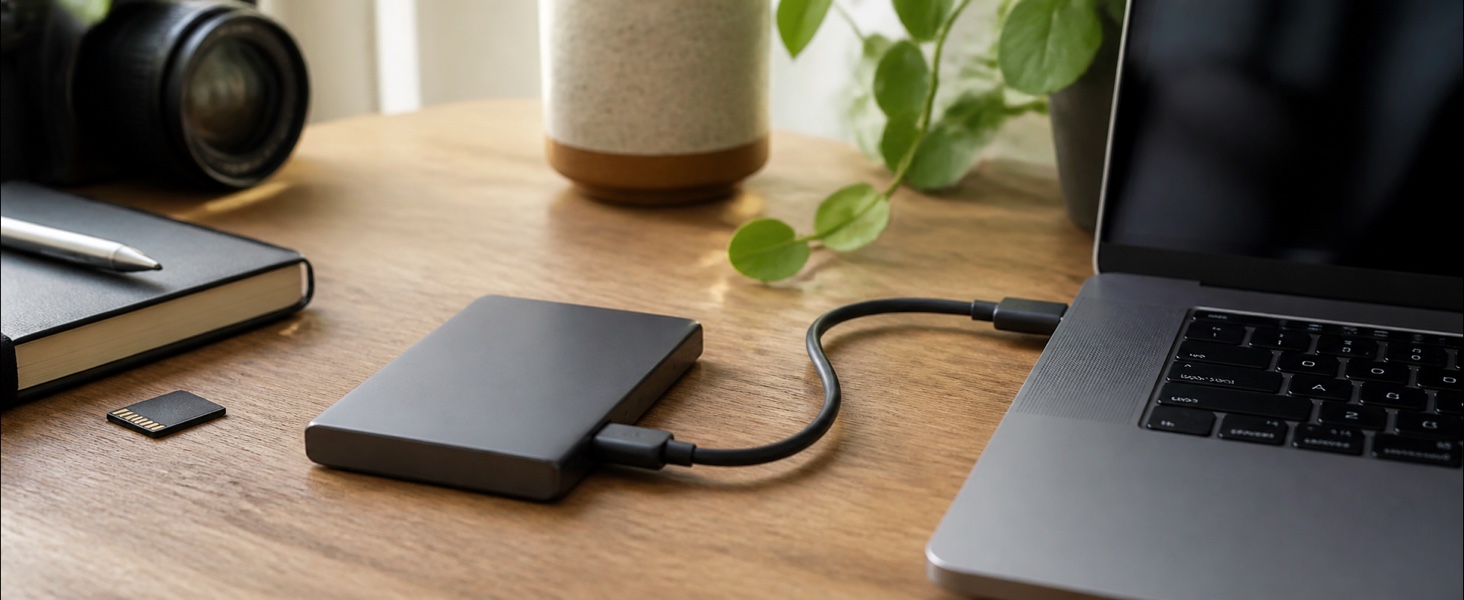
People often search for a “2TB SSD external hard drive”, but an SSD and a hard disk are different technologies. A portable SSD uses flash memory, has no spinning platters and is usually smaller, quieter and more resistant to everyday movement. A desktop HDD generally offers more capacity per pound but needs greater care and may require mains power.
Neither is automatically the better purchase. Start with the workload, then match the interface and enclosure. A photographer editing current projects has different needs from a household building an offline archive.
Quick answer: who should buy a 2TB external SSD?
A 2TB portable SSD is a strong fit when you need a working drive that moves between computers, fast access to large project files, quiet operation or a compact game and media library. It can also be one part of a backup plan.
Choose a large desktop HDD instead when capacity and cost per terabyte matter more than portability or low access time. Diskly’s current product range centres on high-capacity desktop storage, so this guide separates the two jobs rather than pretending the same device excels at both.
| Need | Better starting point | Why |
|---|---|---|
| Edit photos or video from the drive | Portable SSD | Fast random access and no mechanical seek delay |
| Carry project files between desks | Portable SSD | Compact, bus-powered designs are common |
| Keep a large finished-media archive | Desktop HDD | More capacity for the budget |
| Maintain the only copy of important files | Neither alone | One device is not a resilient backup plan |
| Leave storage connected on one desk | Depends on capacity and speed | Compare workflow, noise, power and recovery needs |
Seven checks before buying
1. Confirm that it is really an SSD
Marketplace titles sometimes mix “SSD” and “hard drive” because both are used as generic storage terms. Read the technology field, model number and manufacturer’s page. A true external SSD should be described as solid-state or flash storage. A 2.5-inch or 3.5-inch HDD contains moving parts even when its enclosure looks modern.
Be cautious when an unknown brand promises exceptional capacity and speed at a price far below established products. Fake-capacity devices can report 2TB to the computer while overwriting earlier data after a much smaller physical limit is reached.
2. Match the connection at both ends
USB-C describes the connector shape, not the transfer rate. USB-IF identifies USB 3.2 signalling rates of 5, 10 and 20 Gbps. The SSD, enclosure controller, cable and computer port must all support the intended mode; the slowest part sets the ceiling.
Look for an explicit speed class rather than phrases such as “high speed”. A bundled cable may support data, charging or a lower signalling rate, so keep it with the drive until compatibility is proven. Adapters and front-panel ports can also change performance.
3. Compare sustained work, not only the headline number
Marketing speeds are normally measured under favourable conditions. A short benchmark may fit inside a fast cache, while a long video copy can slow as the cache fills or the enclosure warms. If your work involves 100GB project folders, reviews that include sustained transfers are more useful than a single peak figure.
For ordinary documents and backup sets, reliability, software and restore testing may matter more than the last few hundred megabytes per second.
4. Choose the file system deliberately
Many drives arrive formatted for broad compatibility, but the right format depends on the job. A Windows-only workflow may use NTFS. A Mac working drive may use APFS. ExFAT is commonly used when a drive must move between current Windows and macOS systems, but compatibility with specialist software and devices should be tested before the only copy is moved.
Apple recommends APFS or APFS Encrypted for a Time Machine backup disk, and its professional video guidance recommends APFS for external storage used with Final Cut Pro. Reformatting erases the drive, so decide before loading valuable files.
5. Check thermals, build and cable strain
Portable does not mean indestructible. A metal enclosure can spread heat but may feel hot during a long transfer. Rubberised cases can improve grip yet trap dirt around ports. Check that the cable does not pull against the socket when the drive lies flat beside the computer.
For field use, consider drop and ingress claims only when the manufacturer states the test or rating clearly. No enclosure protects against loss, theft, accidental deletion or electrical damage.
6. Decide how security will work
Encryption can be provided by the operating system, vendor software or hardware in the drive. The important questions are where the recovery key is stored, whether the drive can be opened on every required computer and what happens when an employee leaves.
Before disposal or resale, follow a documented erasure process appropriate to solid-state storage. The secure external-drive disposal guide explains why simply deleting files is not enough.
7. Treat the SSD as storage, not as the backup strategy
An SSD can fail, disappear or be encrypted by malware while connected. Keep another copy on separate media or in an appropriate remote service. The external-drive ransomware backup plan and restore-test guide turn that principle into steps.
2TB versus 500GB, 1TB and 4TB
Do not choose capacity from today’s folder size alone. Add the projects you expect to keep on the drive, temporary render or cache space, and a sensible free-space margin. Then decide what will be archived elsewhere.
- 500GB suits a focused transfer disk or a small current-project set. See the site’s 500GB external SSD guide.
- 1TB is a common middle ground for a laptop backup subset, photo library or game rotation.
- 2TB gives more breathing room for active creative work without becoming difficult to carry.
- 4TB reduces file shuffling but costs more and increases the amount exposed if one device is lost. Compare the 4TB external SSD guide.
Advertised capacity and the usable figure shown by an operating system can differ because manufacturers and operating systems use different units and because formatting consumes space. That is normal; a dramatic shortfall or repeated corruption is not.
When a large desktop HDD is the more honest answer
An external SSD is not the economical choice for every archive. If completed shoots, old game captures or household backups need many terabytes and are rarely opened, a desktop hard drive may be more suitable.
Diskly lists a Western Digital 18TB desktop drive with USB 3.0, a UK mains adapter and Windows-oriented NTFS formatting. It is a desk-bound HDD, not a 2TB portable SSD, and should be compared on capacity and archive workflow rather than speed. The 18TB hard-drive buying guide covers that different category.
A useful two-tier setup keeps current files on the SSD and moves completed work to a larger archive, while maintaining another independent copy of anything important.
A practical acceptance test
Complete this before trusting a new drive:
- Photograph the label and record the model and serial number.
- Check the manufacturer’s capacity, interface and warranty page.
- Connect with the supplied cable directly to the intended computer.
- Confirm the reported capacity and file system.
- Copy one large file and a folder containing many small files.
- Eject, reconnect and open a sample from both copies.
- If the drive will cross platforms, repeat on each supported system.
- Run the real backup or project application and complete a restore test.
- Record where the recovery key and purchase evidence are stored.
Do not fill a suspicious drive with irreplaceable data to test whether it is genuine. Verify the seller, model and return route first.
Common mistakes
- Assuming every USB-C port provides the same speed.
- Buying from a headline transfer rate without checking sustained tests.
- Reformatting before copying any files supplied by the manufacturer that you still need.
- Using the same portable SSD as both working copy and only backup.
- Leaving an always-connected backup exposed to ransomware.
- Comparing a 2TB SSD with an 18TB HDD as though they have the same job.
- Ignoring cable replacement until intermittent disconnects corrupt a transfer.
- Storing encryption recovery information only on the encrypted drive.
FAQ
Is a 2TB external SSD the same as a 2TB external hard drive?
No. Both provide external storage, but an SSD uses flash memory while an HDD uses spinning magnetic platters. SSDs are normally faster and more portable; HDDs usually offer lower cost per terabyte.
Can I use one 2TB SSD with Windows and Mac?
Often, but the file system and software must support both. ExFAT is commonly used for cross-platform file exchange. A dedicated Mac working or Time Machine drive may be better formatted as APFS.
Is 2TB enough for video editing?
It depends on codec, resolution, project length and how much cache or proxy media you keep. Calculate the size of several real projects and plan where completed work will be archived.
Can a portable SSD be my only backup?
It should not be the only copy of important data. Keep at least one independent copy that is not exposed to the same loss, theft, power or malware event.