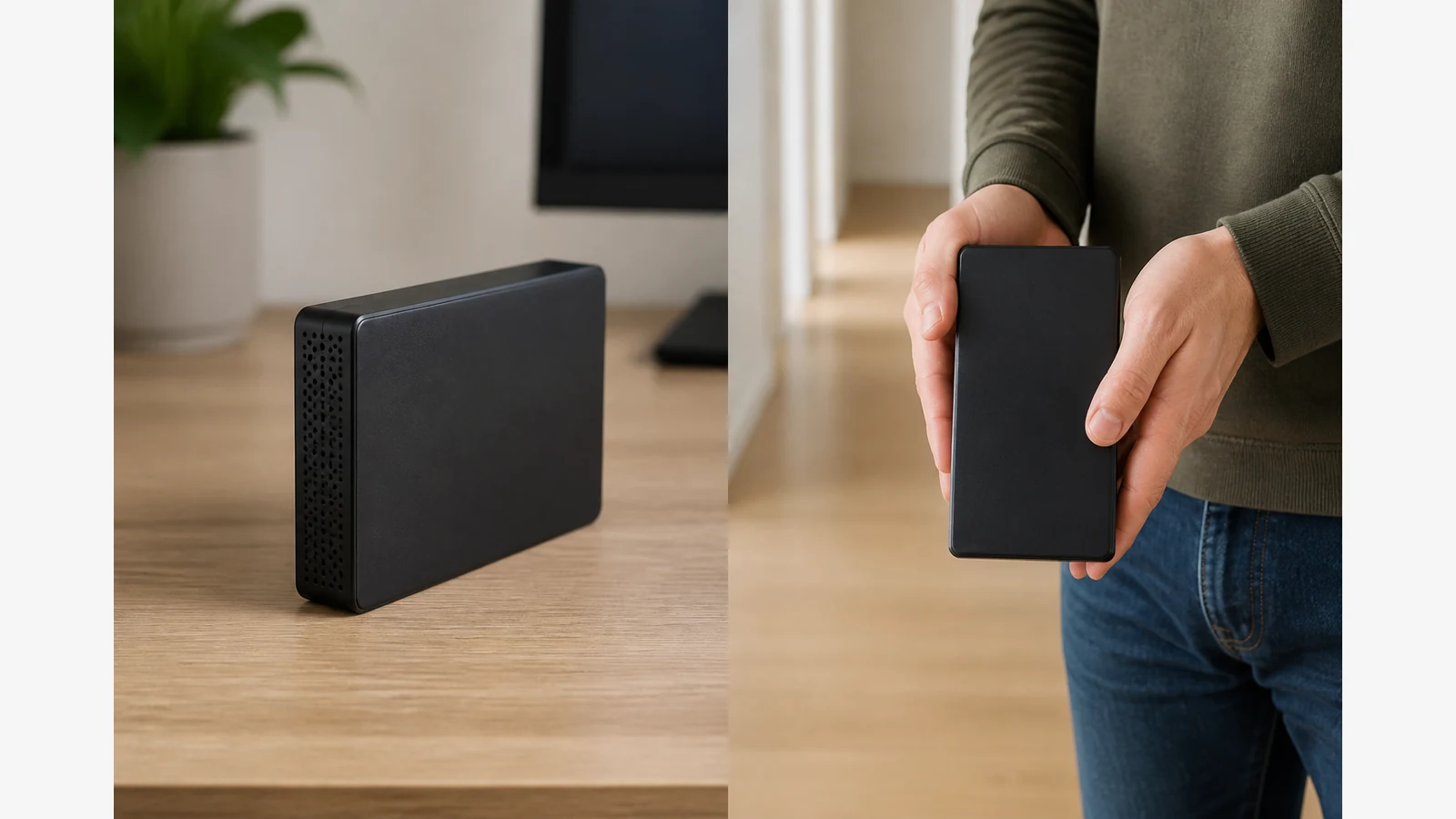
How to Move a Desktop External Hard Drive Safely: Power Down, Disconnect, Then Carry
Finish activity, eject where your OS requires it, power the drive down and remove every cable before you move it. A desktop hard disk should stay still while it is operating.
Why a desktop HDD should stay still while powered
Western Digital’s desktop drive placement guidance advises ventilated, dry, flat placement for 3.5-inch external desktop drives and states that a powered desktop drive should be powered off, disconnected and handled gently before it is moved. Mechanical disks are not designed to be carried while spinning.
Pre-move checklist
- Confirm important files exist on another copy if the move is risky (stairs, long journey, postal shipping).
- Stop transfers and wait until activity lights settle according to your model behaviour.
- Use the operating system’s eject or safe-removal step when applicable.
- Power the drive down using its power switch or by cutting power only as the manual allows.
- Unplug data and power cables so nothing dangles.
- Clear a flat path; move the drive with two hands, keeping shocks minimal.
Seagate’s external drive handling guidance likewise emphasises safe removal before disconnection, careful mechanical handling, dry storage, suitable power supplies and keeping another backup of important data.
Room-to-room versus transport or shipping
| Move type | Practical approach | Extra caution |
|---|---|---|
| Same-room shift | Power down, unplug, lift with two hands to the new flat spot | Avoid dragging by the cable |
| Another room / building | Use original packaging or a padded, snug carry case if available | Do not stack heavy items on the drive |
| Courier or long transit | Specialist packing and labelled orientation cues from the manual where given | Assume transit risk; keep another backup |
Careful handling reduces risk; it does not eliminate mechanical-failure or data-loss possibilities. Defer to the exact model manual for orientation, temperature and packaging limits — do not invent shock ratings.
Set-up checks after the move
- Place the drive on a stable, ventilated, dry surface.
- Reconnect power first if the manual sequences it that way, then data.
- Listen for abnormal noises on first spin-up; if hard clicking starts, revisit the data-first noise guide.
- Confirm the volume mounts, then run a small open/read check before large writes.
Who should use specialist packing — soft CTA and FAQ
Use specialist packing when shipping for warranty assessment, moving many drives at once, or travelling with irreplaceable archives that lack a second copy. Soft next step: for a stationary desktop archive role after a safe move, review the Western Digital 18TB desktop drive on Diskly. Related reading: external hard drive clicking noise what to do and desktop external hard drive ventilation and placement guide.
Can I slide a powered desktop drive across the desk?
No. Power down and disconnect first, even for short moves.
Is original packaging required?
It helps for transit. If unavailable, use snug padding without crushing vents, and keep another backup.
Does gentle carrying guarantee the data?
No. Handling best practice lowers risk; redundant copies remain essential.